
Zoom fatigue is the exhaustion that builds up after long stretches of video meetings, and the fastest way to reduce it is to change three things: cut the number of video hours, stop watching your own face, and protect real recovery time between calls. None of that takes a new app or a new budget. It takes eight small habit changes that most people can make this week, and most of them stick better as a team norm than as a private workaround.
Video call tiredness is not just about being tired of meetings. The screen-lit medium itself adds load: you hold sustained attention on faces at close range, you decode compressed non-verbal cues, and you sit still while someone talks for an hour. People who fix only the camera and still sit through five back-to-backs usually stay tired, which tells you the calendar matters as much as the settings.
The plan below is written for employees first, then for the managers who set meeting defaults. It is general workplace-health information, not medical advice. If fatigue comes with persistent headaches, disrupted sleep, or symptoms that keep building despite these changes, talk to your doctor or an occupational health clinician.
Table of Contents
- What You Need
- Step-by-Step: How to Reduce Zoom Fatigue
- 1. Turn Off Self-View When You Do Not Need It
- 2. Use Fewer, Shorter Video Meetings
- 3. Create a Bracing Camera Setup
- 4. Reduce Unnecessary Visual Attention
- 5. Protect Focus Between Video Calls
- 6. Use a Meeting Agreement for Camera Expectations
- 7. Take a Real Microbreak After Long Calls
- 8. Track What Actually Makes You Tired
- Common Mistakes
- Frequently Asked Questions
- Conclusion
What You Need
None of the eight steps needs equipment beyond what you already have, but five things have to be in place first. Skipping them is why most attempts fail in week two.
- A camera-off option that is actually permitted. Know before you need it whether your team allows cameras off for routine updates. If nobody has ever said yes, ask.
- Notifications under control. Chat, email, and calendar alerts silenced while you are on a call, so the meeting is not competing with a ticker of messages.
- An agenda habit. A short written agenda is the cheapest way to make a meeting shorter and easier to leave.
- Protected focus time. At least one block a day with no video calls in it. Without that, recovery never happens.
- A five-minute reset slot. Calendar space between calls, even if it is only five minutes, reserved before you book the next one.
If your employer already runs meeting-free mornings or a camera-optional policy, you have a head start. The steps below still work, they just apply on top of a better baseline.
Step-by-Step: How to Reduce Zoom Fatigue
These eight changes work best as a set applied consistently, not as eight one-time experiments you abandon after a good Tuesday. Pick two to start with this week, then add the rest as the habit settles. The order below roughly follows impact against effort, so the earliest steps give you the most relief for the least work.
1. Turn Off Self-View When You Do Not Need It
Watching your own face for an hour keeps your attention pointed at yourself. That self-monitoring is one of the four mechanisms researchers at Stanford’s Virtual Human Interaction Lab tie to video-call exhaustion, and users describe hiding self-view as producing relief inside the same meeting.
In Zoom desktop, hover your own video tile and click the three-dot menu, then choose Hide Self View. In Google Meet, click the three dots in the toolbar and turn off Your self view is visible to others off. In Microsoft Teams, use More from the meeting control bar, or click the arrow on your name tile and clear Show my video. Settings names shift between releases, so if the label has changed, look for the self-view or picture-in-picture toggle.
You know it worked when you finish a call without remembering to check how you looked once. Speaker view also helps, since it keeps your attention on whoever is talking instead of on a grid.
2. Use Fewer, Shorter Video Meetings
Most video fatigue is meeting load wearing a video costume. Before joining, ask the one question that decides the format: could this be a document, a message, or a phone call? A lot of status updates do not need faces at all.
Three moves work. Join audio-only when the topic is informational. Ask for a 25-minute default instead of 30 or 60. And keep the camera off for routine internal updates where your team allows it. You also have the right to decline optional meetings, and you can say why in one sentence without turning it into a debate.
Success is simple: the meeting has a stated purpose and an end time you can point to. If nobody can name the purpose, that is your answer.
3. Create a Bracing Camera Setup
A laptop used as a webcam pins your neck at an upward angle for two hours, which is where a lot of the headaches come from. Raising the screen so the top edge sits near eye level takes ten minutes with a stack of books and cuts the strain noticeably.
Then handle light. Face a window or a lamp rather than sitting with one behind you, and close a curtain that creates glare on the panel. Add an external keyboard and mouse if you have them, so you are not reaching up and forward to type. Sitting or standing both work, and standing suits audio-only stretches.
Track it loosely. If neck aches, dry eyes, and shoulder tension drop over a couple of weeks, the setup is working. That matters because this is general information, not treatment, so persistent pain deserves a professional look rather than a better chair alone.
4. Reduce Unnecessary Visual Attention
Every tab, animation, and notification your eyes land on is a small interruption you pay for with re-orientation time. During a call you are already decoding faces; adding a busy desktop pushes the cognitive load past what most people can hold.
Close what you are not using. Turn off desktop notifications and chat pop-ups for the meeting window. Use the plain background or a subtle blur rather than a scene with people and movement in it. And resist the multitasking habit of keeping email or chat open in the background, because it fragments attention in a way that shows up as feeling scattered at 3 p.m.
The test is whether the call ends and your head feels quieter. If your attention keeps snapping to a sidebar, that is the signal to fix, not you.
5. Protect Focus Between Video Calls
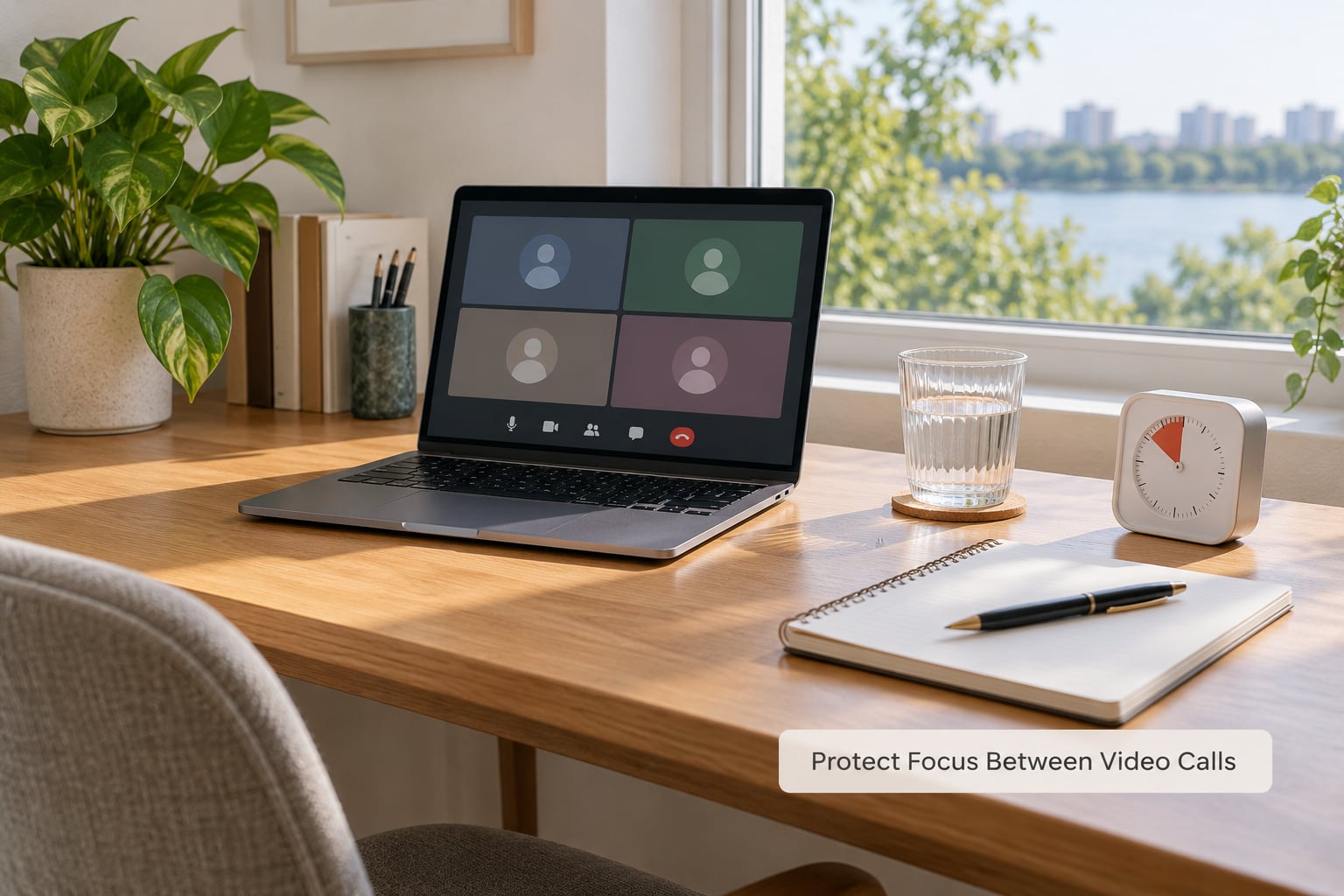
The compounding load is the part people miss. One 30-minute call is fine; four of them with no gap is what breaks a day, and no camera setting fixes that. Recovery time is the actual treatment for video meeting fatigue.
Put a five or ten minute gap between calls as you book them, not after. Refuse back-to-backs when the choice is yours, and keep one meeting-free block each morning or afternoon for real work. In the gap, look away from the screen, walk, or do a few minutes of something physical. That is the same logic behind any serious guide to reducing sedentary behavior at work, since the video day is a sitting problem before it is a focus problem.
If you have no control over your calendar, see step 6. You are not going to fix this alone, and it helps to name that rather than absorb it.
6. Use a Meeting Agreement for Camera Expectations
Fatigue hides inside unwritten norms. When nobody says when cameras go on, everyone stays on, and everyone spends the call performing being present.
A meeting agreement is a few lines a team agrees to in advance: an agenda posted before the call, cameras optional for updates and required only for collaborative work, no recording by default unless everyone agrees, a stated end time, and a moderator who will actually end it. Post it in the invite, not in a channel nobody reads.
You can raise this without becoming the difficult person. Say the workload out loud rather than complaining about it: “Six calls a day with no gaps is where my energy goes, so can we default to 25 minutes and camera-optional for status updates?” Managers often respond faster to numbers about capacity than to vague burnout.
You will know it worked when you stop bracing for awkward camera requests and meetings actually end on time. If the load is broader than one calendar, that is a workplace stress question too, and our guide to reducing stress at work without quitting covers the wider picture.
7. Take a Real Microbreak After Long Calls
Most people treat the gap between calls as more screen time, and the fatigue accumulates anyway. A real microbreak is two to five minutes and it uses a different sense than sight.
Look at something about 20 feet away or out a window. Stand up and move your shoulders and hips. Drink water. Change posture, or step outside if you can. Do not scroll a phone, because that keeps the same visual system engaged.
Build it in by treating the break as a calendar item with a stop time. If you want a quick answer to the “how do I fix fatigue right now” question: drop multitasking, stand for a minute, switch to audio-only or speaker view, and look out a window. It will not fix a bad schedule, but it takes the edge off.
8. Track What Actually Makes You Tired
Advice that fits the research is still not the same as advice that fits your job. A sales role with four hour-long demos a day has a different fatigue pattern from a team that over-books short meetings, and the fixes differ.
For one week, log five things: meeting length, camera on or off, how many calls you took back to back, any physical discomfort, and how much recovery you needed afterward. That is enough to show the pattern. Researchers have built validated self-checks along these lines, including the Zoom Exhaustion and Fatigue scale out of Stanford’s Virtual Human Interaction Lab.
Adjust based on what the log shows. High camera-on hours point to steps 1 and 6. Long runs of calls point to steps 2 and 5. Physical complaints point to step 3. One week of honest data beats a month of guessing, and it is the strongest argument you can bring if you want your schedule changed.
Common Mistakes
Joining everything on video by default. Be the person who asks whether the call needs cameras, and default to audio-only for updates.
Back-to-back scheduling with no buffer. Book the gap first, then the call. If your tooling lets you, set a shorter default meeting length and reject the half hour that becomes an hour.
Sitting in one fixed posture for the whole day. Change position every 20 to 30 minutes, even mid-call, and stand for audio-only segments.
Multitasking through calls. Close the extra tabs and stop reading chat. Attention left over from screen-watching shows up as poor recall later.
Treating fatigue as a personal failure. It is largely a meeting-design problem, which means it is a management problem too. Our piece on reducing overtime without losing output covers the workload side.
Waiting until you are wrecked to say something. Raise it after one bad week, with your log, not after a bad quarter when it reads as burnout.
One final tip: change one thing at a time and keep it for two weeks. That is long enough to know whether it helped your particular job.
Frequently Asked Questions
Why do I get so sleepy on Zoom calls?
Video meetings drain you through three combined mechanisms: sustained attention on faces at close range, non-verbal overload from decoding compressed gestures, and physical stillness. Sitting still in a low-stimulation setting also lowers arousal, so drowsiness builds without any single moment feeling hard. Cutting camera use, adding movement, and shortening the day all help more than pushing through.
Is Zoom fatigue a real thing?
Yes, and it has been studied rather than dismissed. Researchers have documented the effects of self-view, sustained eye contact, non-verbal overload, and limited movement during video meetings, and validated self-check scales exist for measuring it. What it is not is a formal medical diagnosis. That distinction matters if your symptoms are severe or persistent.
Is it rude to turn your camera off during a work meeting?
Less rude than people assume. Most teams would rather have a clear norm than a constant negotiation, and camera-optional is standard practice on plenty of well-run teams. The safe approach is to propose it as a team agreement with a stated purpose, rather than switching off unilaterally on a call that depends on presence. Ask once, in writing, and you will usually get a yes.
How can my employer reduce Zoom fatigue for the team?
Four changes do most of the work: shorten default meeting lengths, add buffers so calls are not back to back, protect meeting-free blocks each day, and shift routine updates to audio or written form. A meeting audit makes the case, because most teams are surprised by their own weekly hours on camera. Async-first norms beat optional camera policies, since they remove hours rather than making them easier.
When does fatigue mean I should see a doctor or an EAP?
See someone if the exhaustion persists after a few weeks of better scheduling, or if it comes with headaches, blurred vision, sleep disruption, anxiety, or neck and shoulder pain that will not settle. Those can point to eye strain, sleep debt, or stress that the calendar fixes alone will not touch. Your employer may also offer an employee assistance program, and occupational health clinics handle workstation problems specifically.
Conclusion
If you do three things this week, make them these. Shorten one meeting that has no clear purpose. Go audio-only, or camera-off where your team allows it, on the calls that are just updates. And block a real break before your next call instead of scheduling straight through it.
Then keep going with the rest: hide self-view, fix the screen height and lighting, and run the one-week log so you are working from your own pattern instead of general advice. If nothing moves after a few weeks, or symptoms are piling up beyond tiredness, that is a conversation with your doctor, an occupational health clinician, or your employee assistance program. Updated for 2026.