
Dry eyes from computer use happen because screen work cuts your blink rate and makes blinks incomplete, so the tear film breaks up and the eye surface starts to feel gritty. The fix is mostly behavioural and environmental, and the table below maps each of the twelve tips to what it does and when to try it.
Table of Contents
- Dry Eyes From Computer Use Tips at a Glance
- 1. Follow the 20-20-20 Break Rule
- 2. Position Your Screen to Reduce Dry Eyes From Computer Use
- 3. Blink More Deliberately During Screen Work
- 4. Take Short Microbreaks Instead of Waiting Hours
- 5. Reduce Glare and Harsh Lighting
- 6. Use Comfortable Text and Display Settings
- 7. Stay Hydrated Without Relying on Excess Caffeine
- 8. Avoid Direct Airflow Across Your Eyes
- 9. Choose Eye Drops With Professional Guidance
- 10. Take Extra Care With Contact Lenses
- 11. Build Screen Breaks Into the Workplace Routine
- 12. Know When Persistent Dry Eyes Need a Medical Check
- Frequently Asked Questions
- Can computer screens directly cause dry eyes?
- What is the difference between dry eyes and digital eye strain?
- Can dry eyes be a problem with contact lenses at work?
- Are over-the-counter eye drops safe for computer-related dryness?
- When should persistent dry eyes see a doctor?
- Can employers help reduce dry eyes from computer work?
- Conclusion
Dry Eyes From Computer Use Tips at a Glance
| Tip | Action | Workplace benefit | Best time to try |
|---|---|---|---|
| 20-20-20 rule | Look about 20 feet away for 20 seconds every 20 minutes | Interrupts fixed staring | Start of your workday |
| Screen position | Top of screen at or just below eye level, arm’s length away | Less squinting, less neck strain | One-time desk setup |
| Deliberate blinking | Full, slow blinks at natural pause points | Redistributes moisture evenly | While typing and reading |
| Microbreaks | Short resets between focused blocks | Prevents end-of-day flare-ups | Every 45 to 60 minutes |
| Glare control | Reposition blinds, lamps and brightness | Comfortable blinking | Morning and late afternoon |
| Display settings | Larger text, matched brightness, sensible zoom | Less leaning toward the screen | When you set up a device |
| Hydration | Keep water within reach, moderate caffeine | Supports normal fluid balance | All day, refill as you go |
| Airflow control | Aim vents away, moderate humidity | Slows tear evaporation | When airflow is noticeable |
| Eye drops | Ask a pharmacist or eye-care professional first | Symptom relief that fits your case | Before long screen blocks |
| Contact lenses | Limit wear, follow care instructions, check fit | Fewer dry, sore days | Plan wear around screen hours |
| Team routine | Task rotation, reminder pauses, shared lighting rules | Breaks actually happen | Start of the work week |
| Warning signs | Track pain, redness, light sensitivity, blur | Catches problems early | Weekly self-check |
1. Follow the 20-20-20 Break Rule
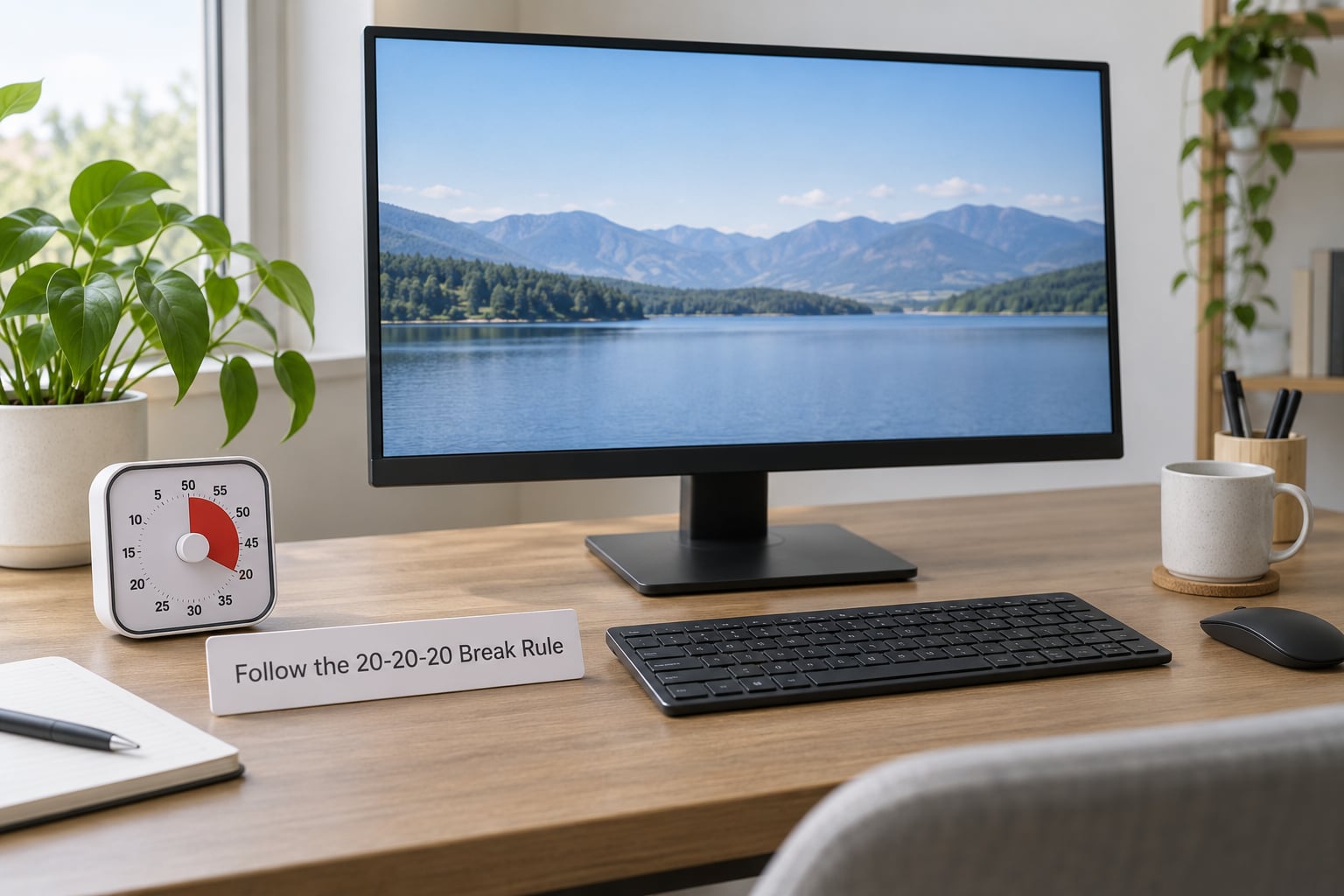
The 20-20-20 rule means every 20 minutes you look at something roughly 20 feet away for 20 seconds. It works because your problem is long unbroken focus, not the screen itself.
Blink rate typically sits around 15 to 20 times a minute when you are relaxed, and it can drop to well under half of that while you read on a screen. Looking away forces your eyes to re-accommodate to a different distance and keeps tears moving across the eye surface.
Set a recurring calendar reminder or phone alarm labelled just “look away” rather than relying on memory. The low-tech version works better for most people: a small desk timer that beeps every 20 minutes, with the beep set low enough that nobody in the row notices it.
For the wider picture on breaks and screen habits, our guide to how to prevent eye strain from computer screens covers posture and lighting in more detail.
2. Position Your Screen to Reduce Dry Eyes From Computer Use
Put the top of the screen near or slightly below eye level, about an arm’s length away. That angle exposes less of the eye surface to the airflow and glare around you, and it also keeps your neck from tilting up all day.
Most office monitors end up too low and too far back, which makes people lean forward and squint. A monitor arm or a simple riser fixes this once and it stays fixed. If you use a laptop as a second screen, raise it on a stand so you are not constantly dropping your chin.
3. Blink More Deliberately During Screen Work
Incomplete blinks are the bigger problem than blink count. A quick partial blink leaves the upper and lower parts of the eye dry, so you get grittiness even though you are blinking “normally.”
Build the habit onto something you already do: finish a line of text and blink slowly before you move on, blink each time you finish typing a sentence, or blink every time you press save. The goal is a full closure of the lids, held for a beat, not a fast flutter.
People who struggle with this on purpose often stack it with another habit, like a phone face-detection reminder or a desk object that prompts them. If you wear makeup or false lashes, that is another reason to look away and blink deliberately at the end of the day.
4. Take Short Microbreaks Instead of Waiting Hours
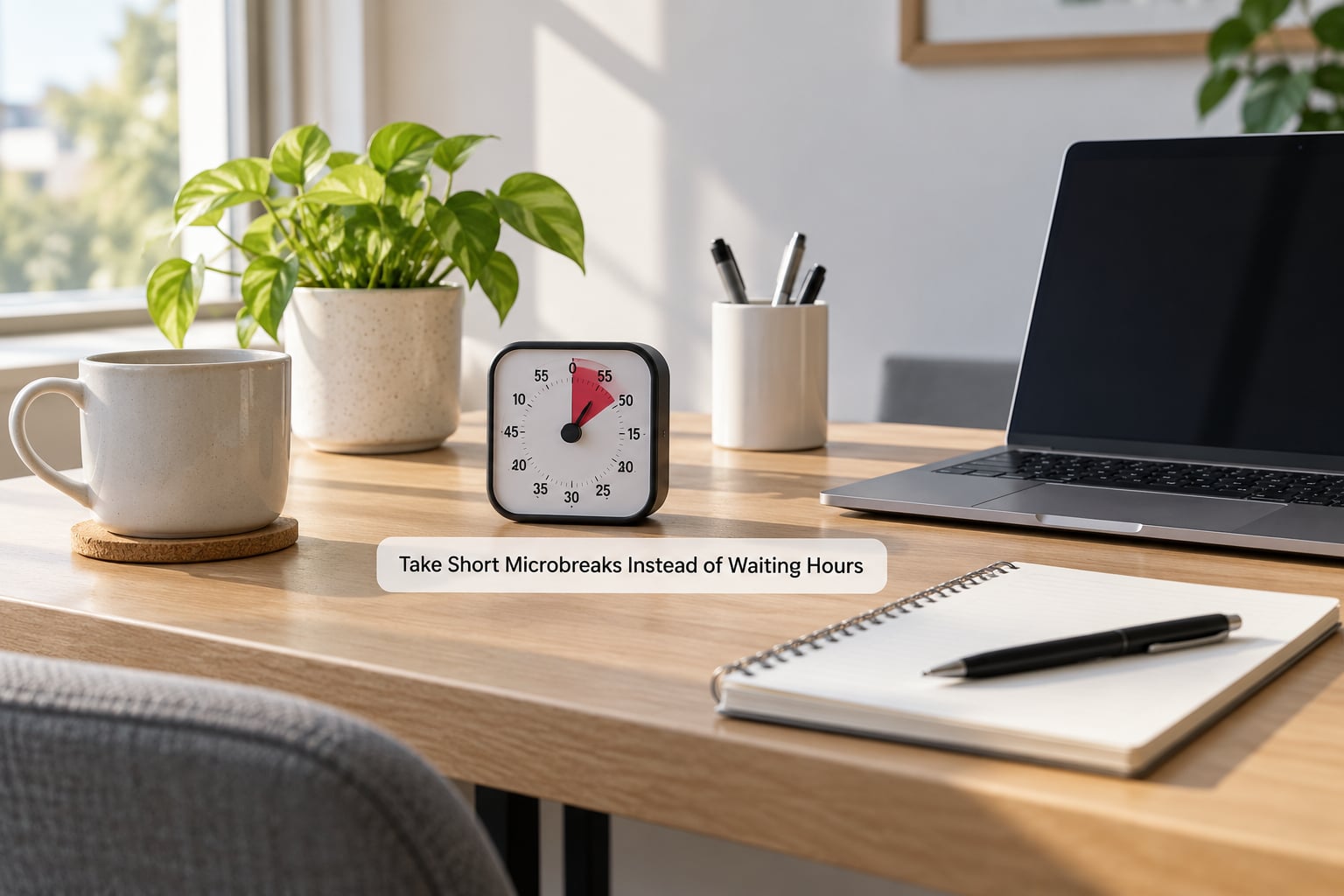
Twenty-second glances are a floor, not a ceiling. Many desk workers get more relief from a five-minute reset every 45 to 60 minutes, because that is long enough to actually relax the focusing muscles.
Try this pattern: 50 minutes of focused work, then five minutes standing up, walking to the far side of the office, or looking out a window. Stacking meetings or calls into those five minutes is where the habit breaks, so protect the slot or move a recurring item on your calendar.
A real five-minute pause usually beats several rushed 20-second glances, and the failure mode is always the same: breaks disappear as soon as someone else’s calendar lands on yours. A protected recurring slot on your own calendar survives that better than a good intention.
5. Reduce Glare and Harsh Lighting
Glare makes you squint, and squinting makes blinking worse. Position your monitor perpendicular to windows rather than facing them, use a desk lamp to light the page rather than your face, and turn blinds so the brightest patch on the screen disappears.
Match screen brightness to the light in the room, not to a fixed number. A screen that looks dim at your desk in the morning will look glaring at 4 p.m. against a dark wall. For a shared office, this one deserves a note in the team chat, because overhead lights and glare are often the same complaint from three people at once.
6. Use Comfortable Text and Display Settings
Increase text size and zoom until you can read comfortably at your normal viewing distance without leaning forward. Comfort does not mean making the text smaller. If you are squinting or pushing your head in to read, the setting is wrong regardless of what looks best to someone else.
Turn on the built-in night light or blue-light filter available in macOS, Windows and most phones. It shifts the screen warmer in the evening, and some people find it noticeably more comfortable for long sessions. Where it helps, it costs nothing to try, which is more than can be said for most optional extras.
7. Stay Hydrated Without Relying on Excess Caffeine
Ordinary hydration helps, with a real limit. Drinking a litre of water will not correct a tear film problem, so do not treat water as treatment. It is worth keeping a glass or bottle where you can reach it without standing up.
Coffee and energy drinks count toward fluids but come with their own trade-offs, including mild diuresis when you have a lot. A steady pattern of water through the afternoon usually beats four large mugs of coffee by 3 p.m., especially if your eyes are already gritty at that point.
8. Avoid Direct Airflow Across Your Eyes
Ceiling vents, desk fans, heaters and air conditioning are the most underrated cause of workday dryness. Moving air across the eye surface speeds up tear evaporation, and winter heating is why symptoms often get worse indoors in cold months.
Aim vents upward or sideways, move your chair out of a direct line, and consider a small humidifier for the room in dry conditions. Nobody needs to buy a device first, though: plenty of offices improve noticeably just by moving a seat away from an air vent or closing a window that blows across the desk.
9. Choose Eye Drops With Professional Guidance
Over-the-counter lubricating drops coat the eye surface and ease grittiness, while prescription treatments address underlying causes and are only available through an eye-care professional. Those are different tools, so ask a pharmacist or optometrist which one fits your symptoms rather than picking on the shelf.
If you plan to use drops frequently, ask specifically about preservative-free formulations, since people who use drops many times a day sometimes react to the preservative. Use any product exactly as directed, and mention every medication you take, including antihistamines, because several common ones increase dryness.
Warm compresses are the other recommendation you will hear often. People generally find them helpful in the evening, when the eyelids feel clogged or crusted.
10. Take Extra Care With Contact Lenses
Contacts sit on the same surface that goes dry, so a long screen session tends to make them feel worse rather than better. Limit wear time, follow your lens cleaning and storage instructions exactly, and use rewetting drops only as your eye-care professional directs.
If discomfort keeps coming back, have the fit checked rather than pushing through. A lens that fits badly and a screen habit are easy to confuse, and one of the two will not go away on its own. Switch to glasses for the worst screen days if that is workable for you.
11. Build Screen Breaks Into the Workplace Routine
Individual discipline fails at 4 p.m. on a bad day, so make breaks part of how the work is organised. Rotate tasks so screen-heavy blocks alternate with phone calls, in-person meetings or document work, and block your calendar so break slots are visible to everyone else.
Ask for things that are cheap and outside your control: monitor arms, adjustable desks, control over blinds and task lighting, and a quiet room to take a five-minute reset in. Our guide to disconnecting from work after hours covers the same principle in the other direction, where the boundary is the problem.
A team example: one group changed its daily stand-up to 4 p.m., added a shared 10-minute no-screen reset at 11 a.m., and turned off notification banners during focus blocks. Turning off notifications and batching screen work reduces total continuous screen time more reliably than micro-breaks alone.
12. Know When Persistent Dry Eyes Need a Medical Check
Book an eye exam if symptoms persist beyond a couple of weeks despite consistent changes, or if they interfere with your work. That threshold matters, because people often self-manage for years and some causes have nothing to do with screens.
Get checked sooner for ongoing pain, marked redness, sensitivity to light, blurred vision that does not clear after blinking, discharge, or symptoms that wake you at night. Contact lens wearers should go earlier rather than later.
Ask about dry eye syndrome specifically. A general screen-strain answer that stops at “reduce screen time” is not much help when your job requires eight hours of screen work. If you suspect a vitamin or nutritional link, an eye-care professional can advise whether testing or dietary changes are worth pursuing rather than guessing at supplements. For anyone whose sleep is also being disrupted by long hours, our sleep hygiene tips for workers cover the shift-worker side of recovery.
Frequently Asked Questions
Can computer screens directly cause dry eyes?
Screens do not dry the eye surface directly, but they change how you use your eyes. Focus on a screen cuts your blink rate sharply and makes blinks incomplete, so the tear film breaks up and evaporates unevenly. Add long hours in air conditioning and you have the full picture. That is why breaks, deliberate full blinks and monitor position matter more than the screen itself.
What is the difference between dry eyes and digital eye strain?
Digital eye strain is the umbrella term for the tiredness, aching and blurred vision that follow a long screen session, plus the headaches that come with it. Dry eye is one specific part of that picture: the eyes feel gritty, sticky or burning because the moisture layer has broken up. You can have strain without true dryness, and dryness that lingers after the screen is off suggests something more than ordinary strain.
Can dry eyes be a problem with contact lenses at work?
Yes. Contacts rest on the eye surface, so they magnify the effect of a reduced blink rate and moving air. Common problems include end-of-day dryness, lens movement, and red or scratchy eyes after a long screen block. Limit wear time, follow your cleaning and storage instructions, use rewetting drops only as directed, and have the fit checked if discomfort keeps recurring.
Are over-the-counter eye drops safe for computer-related dryness?
Lubricating drops sold over the counter are widely used for screen-related grittiness and are generally well tolerated when used as directed. If you find yourself using them many times a day, ask a pharmacist about preservative-free options. They ease symptoms rather than fix the cause, and they do not replace an eye exam when discomfort persists, worsens, or comes with pain or vision changes.
When should persistent dry eyes see a doctor?
Arrange an eye exam if symptoms last more than a couple of weeks despite consistent breaks, blinking and setup changes, or if they regularly disrupt your work. Seek care sooner for ongoing pain, marked redness, light sensitivity, blurred vision that does not clear after blinking, discharge, or symptoms that wake you overnight. Contact lens wearers should not wait that long.
Can employers help reduce dry eyes from computer work?
They can, and most of what helps sits outside individual control: monitor arms and risers, adjustable desks, blinds or glare control over shared lighting, task rotation so screen-heavy blocks alternate with other work, and protected break slots on shared calendars. Turning off notification banners during focus blocks also reduces total continuous screen time. These are small changes with a measurable effect on end-of-day discomfort.
Conclusion
Start with three changes this week: a break you actually take on a timer, a screen at eye level an arm’s length away, and slower complete blinks at the ends of lines. Those three cover most of what a workday can fix on its own, which is good news, because dry eyes from computer use is mostly a habit problem rather than a hardware one.
If dryness is still there in a couple of weeks, or if it comes with pain, redness, light sensitivity or blurred vision, book an eye exam rather than adjusting your habits forever. You can find more on related workplace habits in our guides to eye strain from computer screens and to disconnecting after hours.