
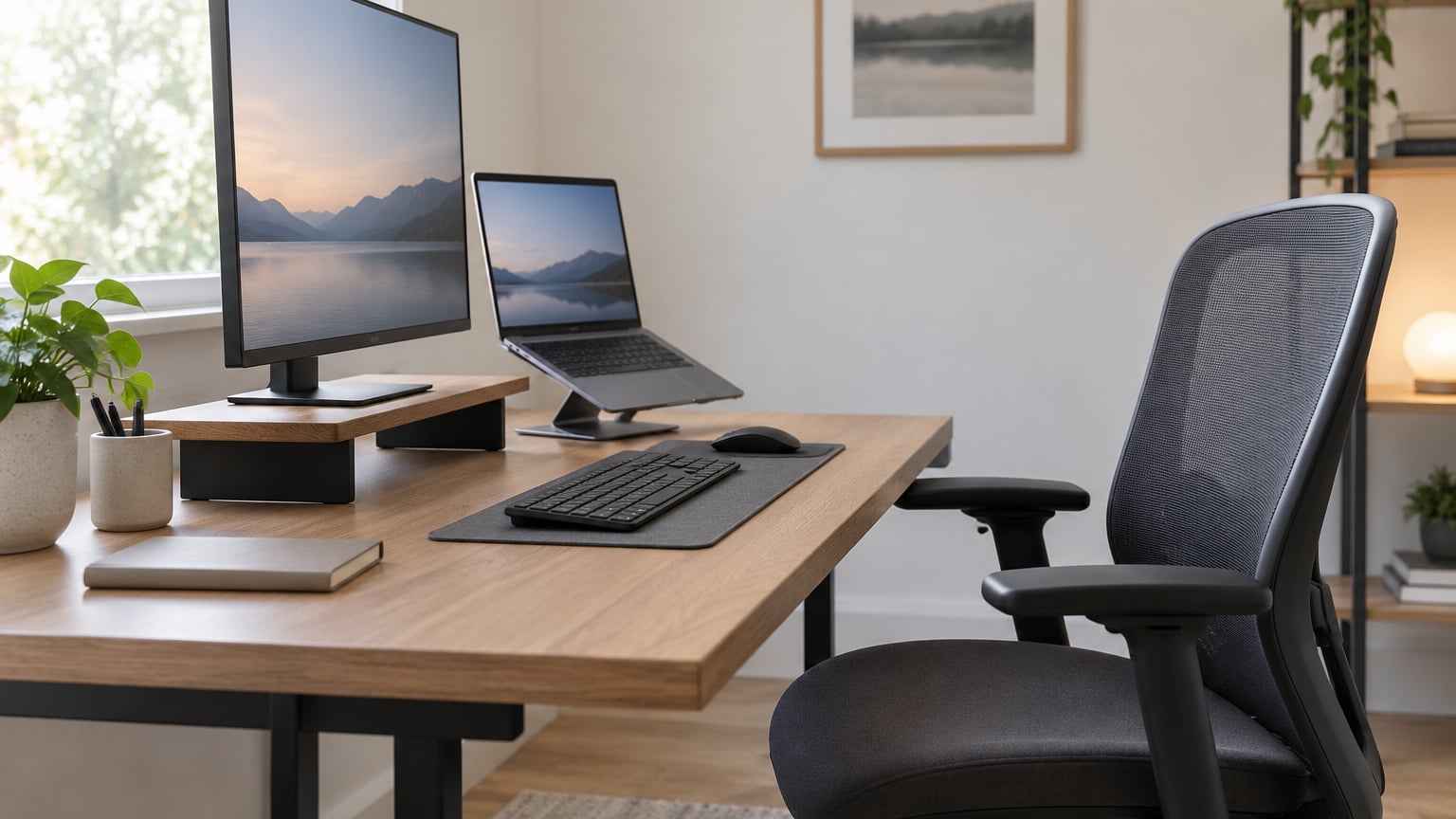
Tech neck, also called text neck or forward head posture, is neck strain caused by holding your head tilted down and forward over a phone, tablet, laptop, or monitor for long stretches. To prevent tech neck, most people need three things: a screen positioned so you are not bending toward it, a desk setup that supports the lower body, and movement breaks every 30 to 60 minutes. Most of it costs nothing.
The uncomfortable part is that the damage is easy to create and slower to undo. A few hours of downward gaze can leave you with pain at the base of the skull, a dull headache, or tightness across the shoulders, and months of that pattern changes how your neck rests even when you are not looking at a screen. So prevention is the sensible route, and the good news is that the habits below take minutes, not equipment budgets.
I work with people who sit at desks for a living, and the pattern is almost always the same. It is never the chair. It is the screen sitting low and far away, which makes the neck reach for it while the shoulders do the reaching instead.
Table of Contents
- What You Need
- Step-by-Step: How to Prevent Tech Neck
- Set a Neutral Starting Posture
- Bring the Monitor Closer and Raise the Top Edge
- Use a Separate Keyboard and Mouse
- Support the Lower Back and Keep Feet Grounded
- Take Frequent Microbreaks and Change Position
- Use a Phone or Headset Instead of Cradling the Device
- Keep Documents and Frequently Used Items Within Reach
- Set a Team or Personal Check-In Routine
- Common Mistakes
- Frequently Asked Questions
- How quickly can workstation changes reduce tech neck symptoms?
- Can using a laptop help prevent tech neck if I work from home?
- Are neck stretches or exercises necessary to prevent tech neck?
- When should I stop changing my desk setup and seek medical advice?
- How can employers help workers prevent tech neck?
- Conclusion: Start With Screen Position and Frequent Breaks
What You Need
Nothing here is required, and you should test the free adjustments first. Most people fix 70 percent of the problem by moving a screen and taking breaks, before they buy anything.
- A chair you can adjust. Ideally with height control, a backrest that moves, and adjustable armrests. A dining chair works if you can sit back in it.
- An external keyboard and mouse if you use a laptop for more than an hour at a stretch.
- A monitor riser, stack of books, or adjustable monitor arm to raise the screen to a usable height.
- A headset, speakerphone, or phone stand so calls do not require holding the device against your shoulder.
- A timer or repeating calendar reminder for movement breaks.
- A sticky note on the monitor edge reading “relax shoulders.” It is the cheapest intervention here.
One safety note before you start adjusting things. If your neck pain is persistent, severe, radiates into an arm or hand, follows an injury or a fall, or comes with numbness, tingling, weakness, or headaches that will not settle, stop self-adjusting and see a qualified healthcare professional. Setup changes are useful, but they are not a substitute for an assessment.
Step-by-Step: How to Prevent Tech Neck
Eight steps, in the order I would do them. The first three usually produce the biggest change within a week, because they deal with how much your neck has to reach.
Set a Neutral Starting Posture
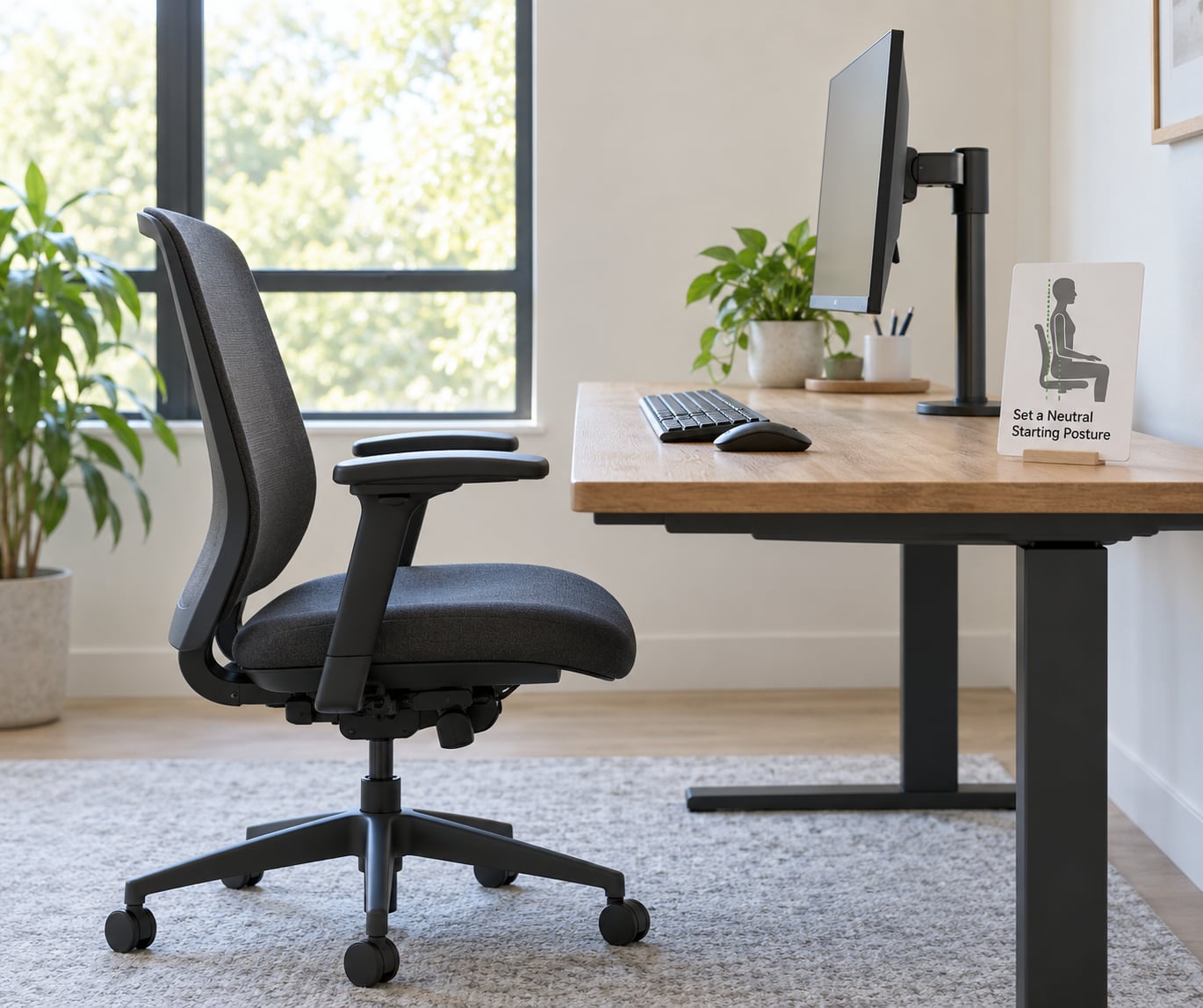
Neutral starting posture means your head is balanced over your shoulders rather than pushed in front of them. In plain terms: ears roughly over shoulders, shoulders down and loose, elbows near your sides, and feet flat on the floor or on a footrest.
Do not try to copy a fixed degree angle from an article, including this one. Sit back, let your ears float over your shoulders, and take a phone photo of your profile. That side view shows more than a mirror does, and it is a fair check on whether your head is drifting forward. Asking a colleague to look for a minute works too.
You will notice something while doing this: you cannot hold it perfectly for long. That is normal. Most people manage the neutral position for under a minute before the habit takes over, which is exactly why steps five and eight matter.
Bring the Monitor Closer and Raise the Top Edge
Distance and height both change how much your neck bends. A practical starting point is to place the screen roughly an arm’s length away, with the top edge of the display near eye level. You should be able to look at it with your head upright rather than tipped back.
Glasses, monitor size, and your own height all shift the right number, so treat this as a starting position and adjust from there. If you have to crane upward, drop the screen a little. If your head is tilted forward to read, raise it or push it closer.
A laptop cannot solve both problems at once. Raise the screen for your neck and your shoulders tip forward because the keyboard came with it. Lower the screen so the keyboard sits under your elbows and your neck bends toward it. This is the trade-off that makes laptop-only setups a persistent problem, and our guide to monitor height and neck pain goes into the setup details.
Use a Separate Keyboard and Mouse
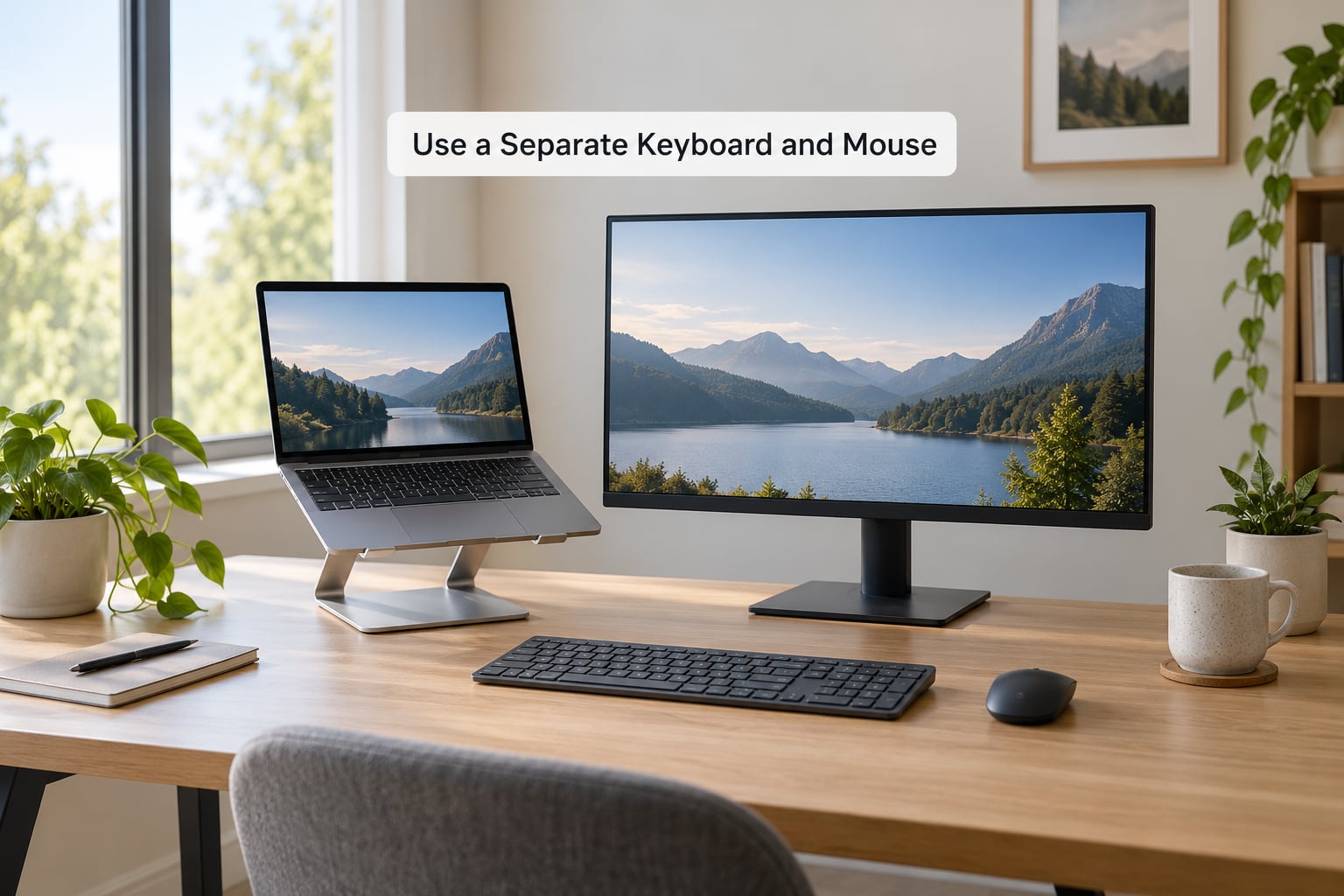
A separate keyboard breaks the trade-off above. You can put the laptop on a stand or a stack of books to raise the screen, then use an external keyboard and mouse at elbow height, which lets your shoulders stay where they belong.
Keep both input devices close enough that you are not reaching with your arms or drifting your torso to get there. Whether you are on Windows, macOS, Linux, or a tablet with a keyboard case, the adjustment is the same: screen high, input low and near.
Test it with the work you actually do rather than a test document. An hour of writing, spreadsheet work, or code will tell you something a demo never does. Make small changes and give each one a few minutes before you judge it.
Support the Lower Back and Keep Feet Grounded
When the pelvis is unsupported, the ribcage slumps and the head ends up forward to balance it. Start with the backrest against your lower back rather than resting against the top edge, then set the seat depth so your knees are slightly ahead of your hips and your lower back has a few fingers of space.
Adjust the armrests so they support your forearms with your shoulders relaxed, not raised. Drop your feet flat, or use a footrest if the floor is out of reach or your chair does not let you reach it.
A chair cannot rescue a screen placed badly, and it cannot replace movement. Our step-by-step on how to set up your desk to prevent back pain covers the lower-body side of the setup in more detail.
Take Frequent Microbreaks and Change Position
Static posture loads the body more than posture does. A useful break is short and frequent rather than long and rare, so start by checking the clock every 30 to 60 minutes and changing position for about a minute.
What counts: standing up, walking to get water, looking across the room to shift your eyes and neck, or a gentle stretch. What does not count is scrolling on your phone with your head down, which replaces one neck position with another.
Set the reminder so it works when you are focused on a task. A repeating calendar entry or a free interval timer is more reliable than memory. Screen break routines built for eye strain, like the one in preventing eye strain from computer screens, also help because they force you to look away from the display.
Use a Phone or Headset Instead of Cradling the Device
Holding a phone between your ear and shoulder pins one side of the neck in an extended position while the other hand works. A headset, a speakerphone, or a phone on a stand keeps the device off your shoulder and off your neck.
For video calls, propping the phone up at eye level also fixes the common habit of looking down at a screen propped at desk level. Keep the volume moderate so you are not straining toward the speaker, and use a plain chat message instead of a call if it works for the person on the other end.
Keep Documents and Frequently Used Items Within Reach
Repeated reaching and twisting adds rotation on top of a forward head, which tends to make symptoms worse. Put frequently used papers, your keyboard, mouse, phone, and everyday supplies inside a comfortable primary reach zone, which for most people is a curved area from the elbow to the shoulder.
If you read or review documents often, a document holder angled next to the monitor keeps your head from dipping repeatedly. After any rearrangement, re-check the layout over a few days. A new arrangement that makes you lean or swivel is worse than the one you replaced.
Set a Team or Personal Check-In Routine
The eight habits above fail when they depend on willpower at minute 90 of a hard afternoon. Turn them into a routine instead.
A daily check takes thirty seconds: are the shoulders down, is the head over the shoulders, are the input devices where I do not reach for them. Add a periodic review where you adjust everything again from scratch, because the same setup does not fit every task. With a team, raise monitor, chair, and break needs together instead of one person at a time, since shared desks and hot-desking setups get worse every time they change.
Employers can support this by making recurring ergonomic assessments and adjustments available, and by treating equipment requests as a routine process instead of an exception. That conversation goes a lot faster when the request comes with specific measurements rather than “my neck hurts.”
Common Mistakes
These are the errors I see most often, each with the correction that fixes it.
- Hunching over a laptop all day. The screen and the keyboard cannot both be in the right place on a bare laptop. Fix: add a riser and an external keyboard, or use a separate monitor.
- A monitor that is too low or too far away. This makes you reach and tilt all day without noticing. Fix: top edge near eye level at roughly an arm’s length.
- Raising your shoulders to reach. Often caused by armrests set too high, or a keyboard pushed to the edge of the desk. Fix: lower the armrests, pull the input devices in.
- A headset pressed hard against one ear. Heavy pressure and poor sound both cause people to lean in and tilt their head. Fix: lighter fit, correct size, or switch to speakerphone.
- Working through warning pain. Pushing through is how a manageable ache becomes a problem that lasts months. Fix: adjust now, and get it assessed if it does not settle.
- Buying one expensive chair and calling it done. A good chair helps, but it does not fix a screen at the wrong height. Fix: fix the screen and the input devices first.
- Stretching hard and stopping there. Long, aggressive stretching of the back of the neck can leave you with less ability to hold your head up, and muscles at the back of the neck and upper back are often both tight and weak. Fix: pair gentle mobility with strengthening work, such as chin tucks and rows, and get guidance if it hurts.
Three short prevention tips: measure your setup once so you are not guessing, schedule the break before the pain reminds you, and fix the item you can adjust today rather than the perfect one you can order next month.
Frequently Asked Questions
How quickly can workstation changes reduce tech neck symptoms?
Many people notice less tightness and fewer headaches within a week or two of raising the screen and adding frequent breaks, because the posture demand drops immediately. Change is gradual rather than instant. Weeks of consistent setup and strength work usually matter more than a single afternoon of adjustment. If symptoms are not easing after a few weeks of steady effort, that is a good reason to get a professional assessment rather than continuing to tweak the desk.
Can using a laptop help prevent tech neck if I work from home?
A laptop alone is the hardest setup to make comfortable, because the screen and keyboard are fixed together. Short sessions are usually fine. For a full working day, put the laptop on a stand or a stack of books, add an external keyboard and mouse, and use a separate monitor for anything long. You can prevent tech neck at home with the same principles as an office desk, just without the equipment budget.
Are neck stretches or exercises necessary to prevent tech neck?
Movement and strengthening are useful, but setup comes first. Gentle range-of-motion work, such as drawing the head straight back and holding it briefly, is a common starter, paired with upper back work like rows or wall angels. Aggressive stretching of the back of the neck can leave you less able to hold your head up, so keep any stretching mild and stop if it pinches or hurts. A physical therapist can show you what suits your symptoms.
When should I stop changing my desk setup and seek medical advice?
Stop adjusting and seek professional advice if pain is severe, radiates into an arm or hand, or comes with numbness, tingling, weakness, or headaches that do not settle. Neck pain after a fall, an accident, or a specific injury needs assessment rather than a better desk. So does pain that keeps returning or is worsening over several weeks despite steady changes. A physical therapist or a doctor can assess what is actually driving the symptoms.
How can employers help workers prevent tech neck?
The most useful thing an employer can do is make equipment and assessment routine rather than exceptional. That means adjustable chairs and monitors, access to external keyboards and headsets for laptop-based staff, shared desk options that people can adjust before each shift, and permission to take short movement breaks during the workday. Employers can also offer recurring ergonomic assessments so changes get made early instead of after someone is in pain.
Conclusion: Start With Screen Position and Frequent Breaks
If you do two things this week, make them these: bring the screen close enough that you can read it with your head upright, and raise the top edge until you are not tilting to look. Add a separate keyboard if you work on a laptop, support your lower back and feet so your torso is not slumping forward, and change position every 30 to 60 minutes.
Start with one adjustment today rather than a full plan. That is usually enough to prevent tech neck from getting worse, and if you already have pain that is persistent, severe, radiating, or tied to an injury, see a qualified healthcare professional instead of adjusting the desk on your own.